* * HELP & MANUAL PREMIUM PACK 4 DEMO VERSION * *
This documentation was styled with a demo skin from the Premium Pack 4 add-on for Help & Manual. The contents of the skin are encrypted and not configurable. You can only publish HM projects with this skin. You cannot edit it or change it.
This version is copyright and may only be used for local testing purposes. It may not be distributed.
Please purchase the full version of the Premium Pack to get the configurable skins and remove this notice. The package will also include the Toolbox configuration utility for Premium Pack skins.
How to use thinBundle
From thinAir, use menu Script/Bundle.
An immediate script source code scan will start and all the information needed by the bundling process will be automatically detected reading the script.
After a while, thinBundle User Interface window will appear. Just go through all the tabs and check if all is ok.
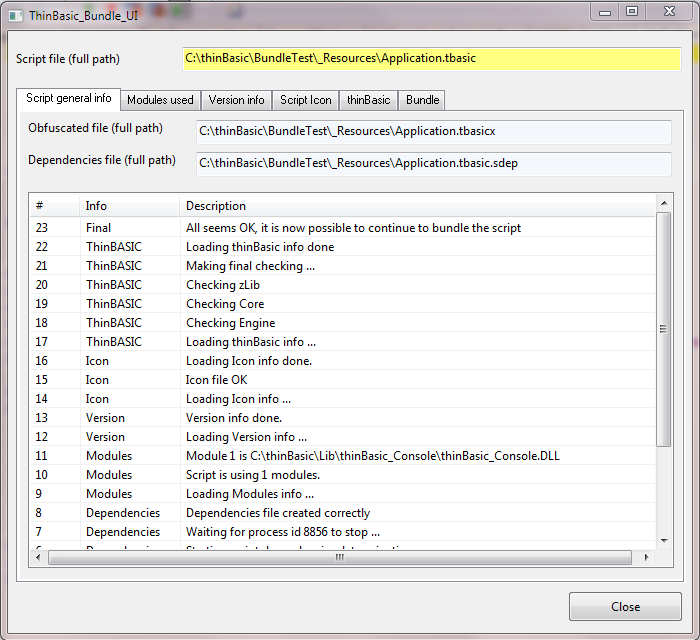
"General" tab will contain most of the information detected by the script.
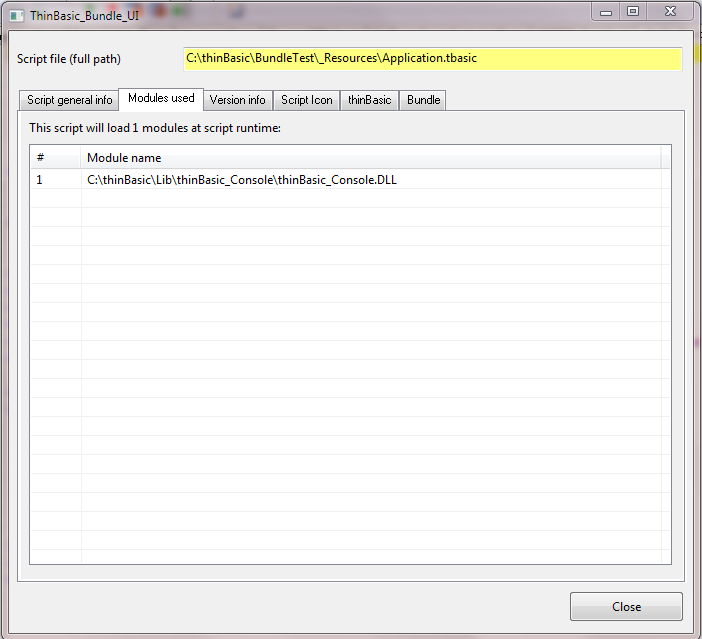
All ThinBASIC modules needed by the script will be listed into "Module" tab.
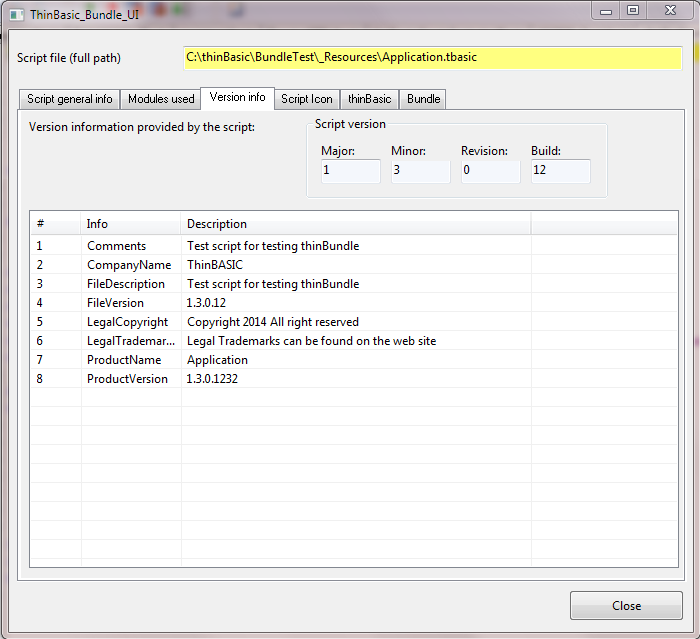
Executable Version Info will be detected from the script reading #BUNDLE Version and #SCRIPTVERSION pre-parsing directive from the script.
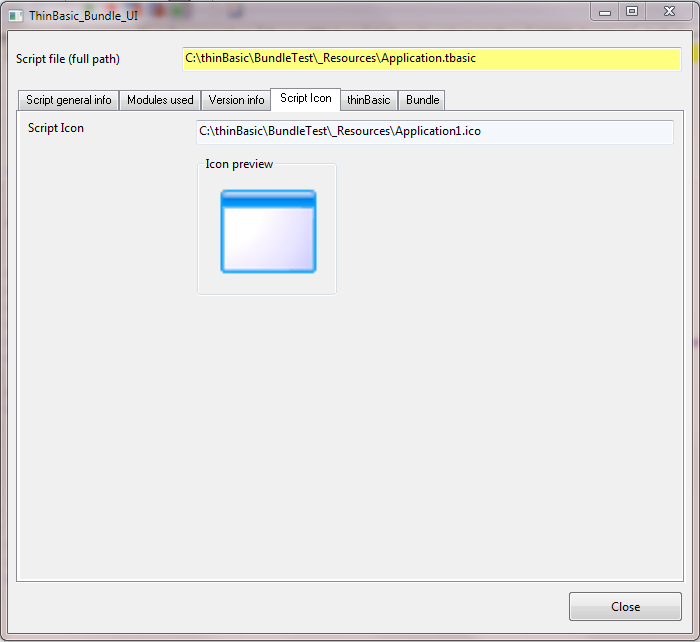
Executable Icon (if any) will be detected reading #BUNDLE Icon pre-parsing directive. If no Icon will be found, a default icon will be used.
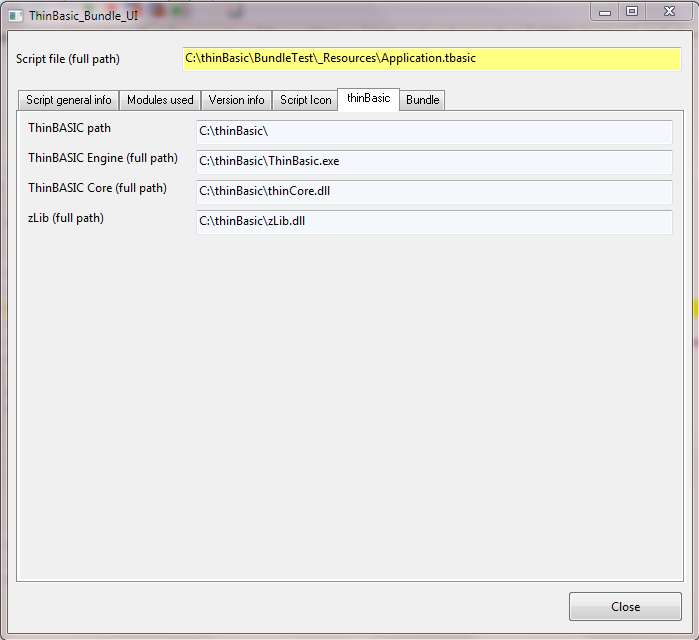
ThinBASIC engine will be detected and checked.
If all is OK, in the final tab "Bundle" all the checks will be in green color and "BUNDLE" button will be active.
Final executable file name and path can be indicated in the script using #BUNDLE Name pre-parsing directive.
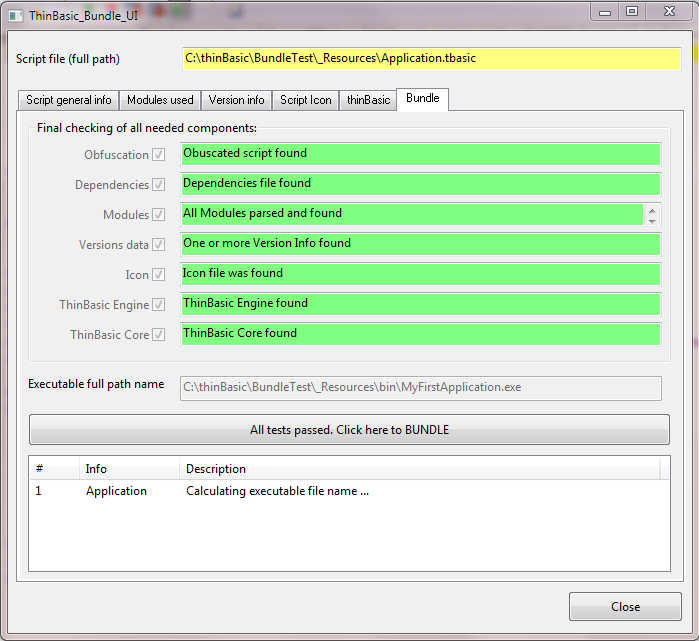
If all verifications will be OK, just press BUNDLE button and wait for the process to ends.
If all will be fine, a message box will appear telling "OK" or "NOT OK"