* * HELP & MANUAL PREMIUM PACK 4 DEMO VERSION * *
This documentation was styled with a demo skin from the Premium Pack 4 add-on for Help & Manual. The contents of the skin are encrypted and not configurable. You can only publish HM projects with this skin. You cannot edit it or change it.
This version is copyright and may only be used for local testing purposes. It may not be distributed.
Please purchase the full version of the Premium Pack to get the configurable skins and remove this notice. The package will also include the Toolbox configuration utility for Premium Pack skins.
How to use thinBasic as a CGI script engine under Abyss web server (version 2.3).
Abyss Web Server
•Be sure Abyss is installed in your system
•Connect to Abyss Web Server Console using something like http://localhost:ConsolePort
where ConsolePort is the port you have assigner to Abyss Web Console during installation. Default is 9999
•Abyss Web Server Console will ask for user name and password
•If all is ok, the following screen should appear:
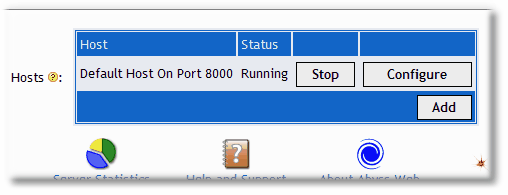
•Click on Configure button
•We have to add some new Index Files. Use Index File button and add the following index files:
index.tbasic, index.tbasicc. If you want to execute also encrypted scripts, add also index.tbasicx and index.tbasiccx.

This operation instructs Abyss web server which are the default pages to load when users navigate into your web server.
Confirm operation with OK button.
•Under "Scripting Parameters" you have to setup thinBasic interpreter to be used with thinBasic extensions.
Click on Scripting Parameters button.
Click Add in Interpreters option.
Fill in the form with the following information:
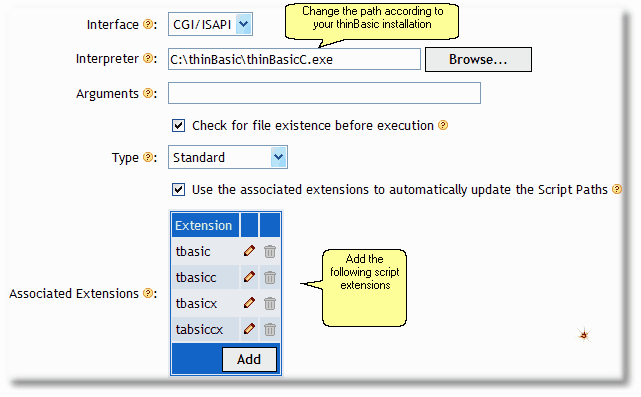
Click Ok button to confirm. You will return to Scripting Parameters end you should see something like the following:
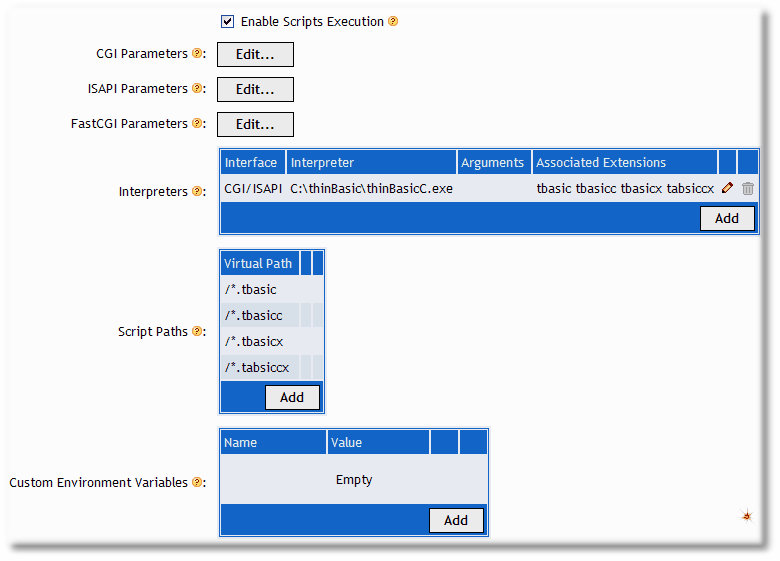
Click Ok button to confirm.
•You are now into root Web Console configuration.
You need to map root web server to physical path.
If you want you web server root to map to thinBasic CGI, use General button and apply something like the following:
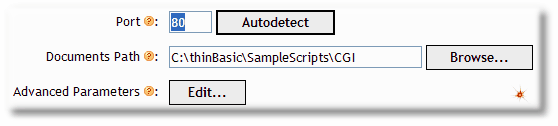
Click Ok button to confirm.
If you need to map a virtual path, use Aliases button and one or more virtual path(s).
Again, click Ok button to confirm.
•You are now into root Web Console configuration again.
All the changes are not online until you confirm with Restart button:

Click Restart button. Abyss Web Server will apply all the changes and restart web server.